Creating a brainlet
A brainlet is a prompt, a brain to run it and the tools it may use, behind a URL. Anyone (or anything) that can make an HTTP request can call it: a script, a form, a webhook from Stripe or Twilio. This guide walks through building one in the dashboard. Or let your agent build it: connect Claude, ChatGPT or Claude Code to the MCP server.
1. Start a brainlet
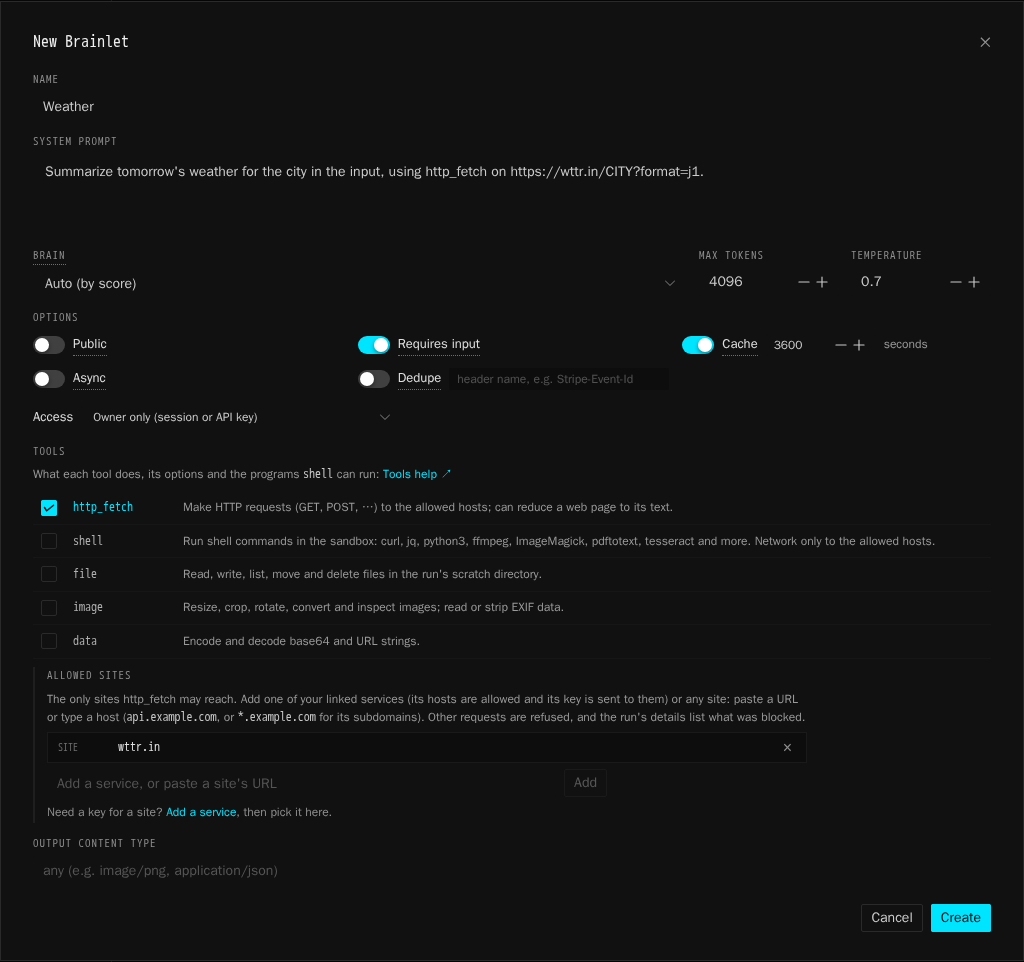
Sign in, open Brainlets in the dashboard and click + New Brainlet. Give it a name and a prompt; everything else has a sensible default and can be changed later on the brainlet's Spec tab.
2. Write the prompt
The system prompt is what the brainlet does, every time it runs. The caller's input arrives as the request for that run: plain text as it was sent, JSON as JSON, form posts (Twilio, Slack), query parameters (?city=Boston) and the rest of the URL (/<slug>/Boston, as "path") as a JSON object, and images or large inputs as a file the brainlet can open.
- Say what to produce and in what form: “Reply with two sentences”, “Return JSON with
cityandtemp_c”. - Say what to do with the input: “The input is a US city”, “The input is a Stripe event”.
- Name the tools it should use. Without tools a brainlet can only write text. To fetch a page, call an API, run a program or work with files, grant the tool (below) and say in the prompt what to use it for, for example “Fetch
https://wttr.in/CITY?format=j1with http_fetch” or “Use pdftotext on the input file”. Models follow a named tool far more reliably. See the available tools for each tool's options and the programsshellcan run.
3. Choose a brain
The Brain is the model that runs the prompt.
| Auto (by score) | A house model, picked from the brainlet's score (how much its prompt and tools ask of the model). The default. |
| IQ-80, IQ-100, IQ-200 | A specific house tier: IQ-80 for simple tasks, IQ-100 for everyday work, IQ-200 for complex work. Higher is slower and more capable. |
| Your own models | Models from a provider you linked under Model providers (OpenRouter, Anthropic, OpenAI), listed by name. Your provider bills those runs; if your key fails, the run fails rather than falling back to a house model. |
Max tokens caps each model reply; Temperature (0–2) trades consistency (low) for variety (high).
4. Grant tools
Tick the tools the brainlet may use under Tools. Below them, Allowed sites lists the only places http_fetch and shell may reach. Paste a URL (https://wttr.in/Boston?format=3 is allowed as wttr.in) or type a host, or *.example.com for its subdomains. Adding a site turns on http_fetch if no network tool is on. Requests anywhere else are refused, and the run's details say which host was blocked so you can add it.
To call an API that needs a key, add the key under Services, then pick the service in the same Allowed sites box. Its hosts are allowed and the key is added to the brainlet's requests to them; the brainlet and its model never see it. Like everything in the spec, the list is part of the version you publish.
Installing a service also tells the model how to call it, so the prompt only needs to say when: “text the summary to me with Twilio”. A service that sends email, SMS or chat messages can be made to send by anyone who can call the brainlet, so set limits in the service itself before you give it to a public one.
Two tools work outside the brainlet, on our side: search searches the web (Brave) and needs no Allowed sites, and browser opens pages in a real browser, so JavaScript runs. The browser opens only pages on Allowed sites, though a page may load its images and scripts from anywhere. Both count against your daily quotas of searches and browser pages.
5. Set the options
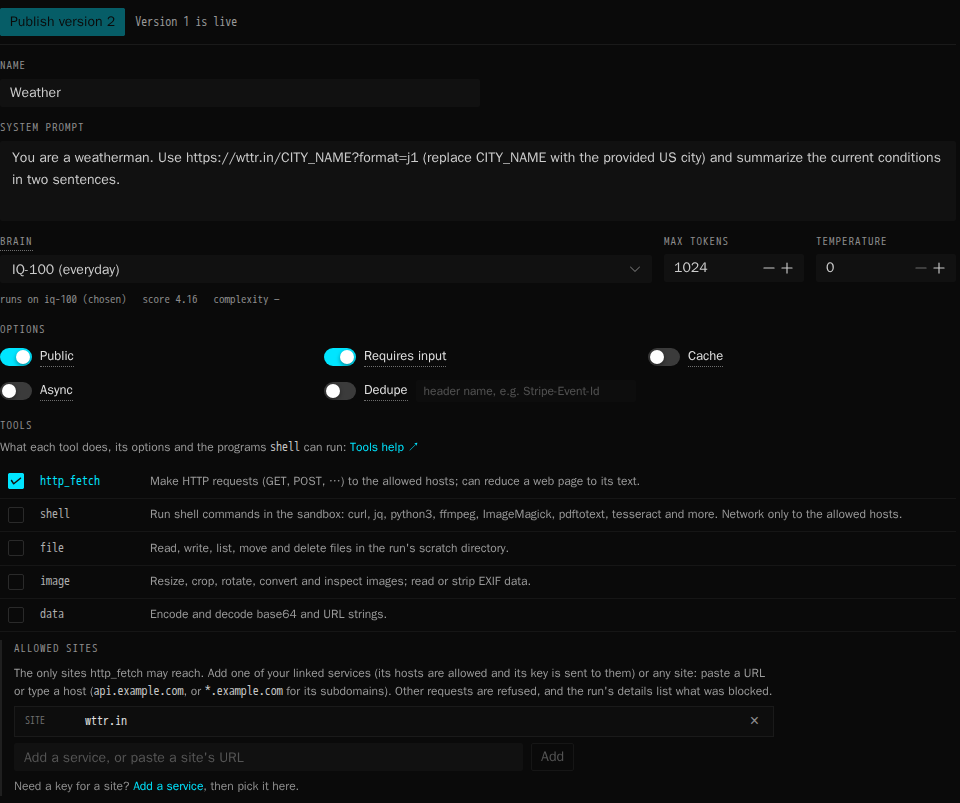
| Public | Anyone with the URL can run it, with no sign-in or key, and the runs are billed to you. Off (the default), only you can run it, with your session or an API key. |
| Requires input | Whether the run page asks for input. Off: the Run button and the public page run it straight away, from the prompt alone (a daily report, a status check). |
| Cache | A repeat request with the same input gets the saved answer for this many seconds instead of a new run. Only successful runs are saved; publishing a new version starts fresh. |
| Async | Reply 202 with the invocation ID at once and run in the background. For senders that give up after a few seconds (Twilio, Stripe). The result shows on the Invocations tab. |
| Dedupe | Senders retry an event they think failed, with the same event ID in a header. Name that header (e.g. Stripe-Event-Id) and a repeat within 24 hours is answered without running again. |
| Access | Private brainlets only. Owner only; or also an access secret for callers that can't send your API key (a webhook URL with ?key=…, basic auth, a header); or a signed webhook: Stripe, Twilio, GitHub or any sender that signs its deliveries with an HMAC. Choose (or add) the signing secret right there: paste the sender's, or generate one to give it. One secret can serve several brainlets; forged, stale or replayed deliveries are refused. |
| Output content type | Leave empty for a text answer. Set it (application/json, image/png, image/*) when callers need a specific type back. |
6. Publish and run
Changes on the Spec tab take effect when you click Publish version N; each publish is a new version (see the Versions tab), and calls always run the latest. Try it on the Run it tab:
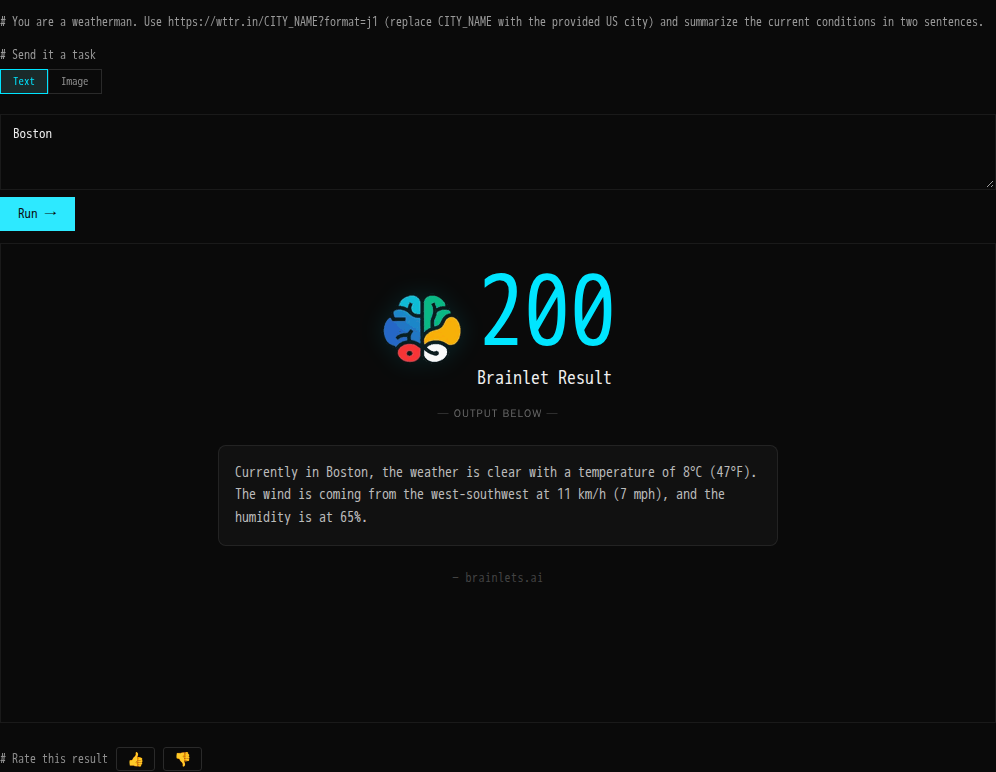
Or call its invoke URL (shown at the top of the brainlet page):
# input in the body
curl -X POST https://brainlets.run/<slug>/ -d "Boston"

# or as query parameters (the model gets {"city": "Boston"})
curl "https://brainlets.run/<slug>/?city=Boston"

# or in the URL itself (the model gets {"path": "Boston"})
curl "https://brainlets.run/<slug>/Boston"
A private brainlet needs -H "Authorization: Bearer <api-key>" (create keys under API Keys) or its access secret. Responses: 200 with the answer; 422 when the model says it can't do the task; 502 when the model provider failed; 402 when the brainlet's owner has used up a quota the brainlet needs: house-model tokens, web searches or browser pages (the message and X-Brainlets-Quota-Resource say which and when it resets; brainlets on your own model provider don't count toward tokens, and the Brainlets page shows how much you've used); 500 for anything else. See API usage.
7. See what happened
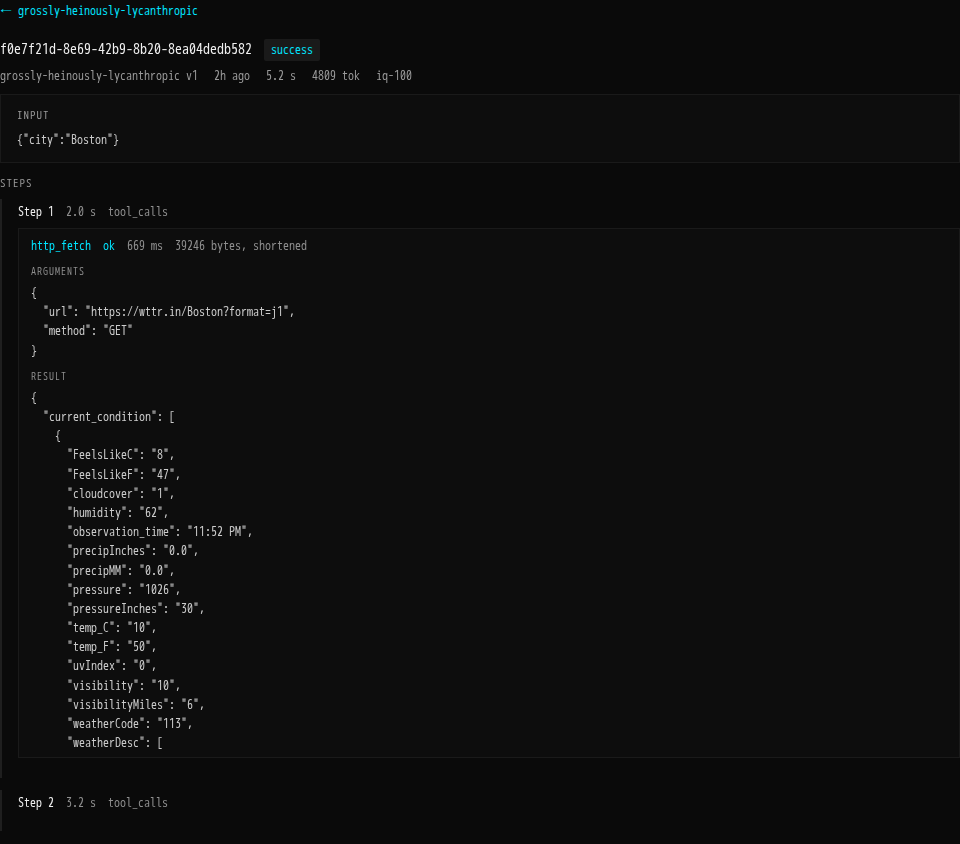
Every run is listed on the brainlet's Invocations tab with its outcome, error, tier, tool calls and time. Click one to see each step: the tool calls the model made, their arguments and what came back. When a run fails with a vague message, the real cause is usually in a tool result here.
8. Examples
Two to start from. Each is a spec you can paste on a brainlet's Spec tab, or ask your agent to make.
Screenshot a page
Send it a URL, get back a PNG. browser_screenshot saves the image and respond_file returns it, so the response is the image itself.
{
  "system_prompt": "Take a screenshot of the page in the input with browser_screenshot and send the image back with respond_file. Nothing else.",
  "tool_grants": [
    "browser"
  ],
  "egress_allowlist": [
    "example.com"
  ]
}
curl -X POST https://brainlets.run/<slug>/ -d "https://example.com" -o page.pngSearch, then read
Ask a question; it searches the web, opens the best result in the browser and answers from what the page says, with its URL. Search needs no Allowed sites; reading the page does, here any Wikipedia site.
{
  "system_prompt": "Answer the question in the input. Search the web with search_web, open the most relevant Wikipedia result with browser_read, and answer in two sentences from what the page says, then give its URL.",
  "tool_grants": [
    "search",
    "browser"
  ],
  "egress_allowlist": [
    "*.wikipedia.org"
  ]
}